
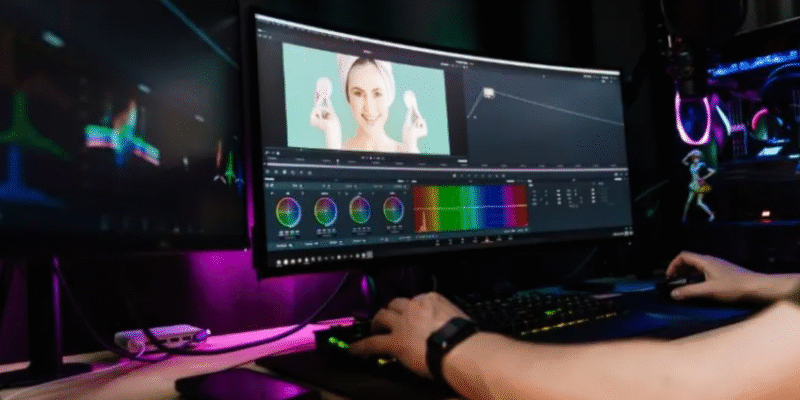
AI image editors have basically changed how people deal with everyday photo work now. In 2026, the good free ones can remove objects, swap backgrounds, restore old images, spin up variations, and make genuinely complex edits just from a text prompt. The real question’s not “can AI edit a photo” anymore — everyone can do that on some level. It’s which editor actually nails quality, control, speed, free access, and workflow together, without one of those coming at the cost of the others.
For creators, marketers, devs, startup teams — this distinction genuinely matters. A tool that looks great in a demo video can still be annoying to actually use every day. So this comparison’s about real usability, not just what looks impressive on a landing page.
Best AI Image Editors at a Glance
| Tool | Best for | Main modalities | Free access | No-sign-up option | Platform |
|---|---|---|---|---|---|
| Magic Hour | Prompt-based editing and creative workflows | Image, text, image-to-image | Yes | Yes | Web |
| Adobe Firefly | Generative image editing | Text + image | Limited | No | Web |
| Canva | Social and marketing graphics | Image, text, templates | Yes | Limited | Web, desktop, mobile |
| Pixlr | Browser-based photo editing | Image + AI tools | Yes | Yes for some tools | Web |
| Photoroom | Product photography | Image + AI editing | Yes | Limited | Web, mobile |
| Fotor | General AI photo editing | Image + text | Yes | Limited | Web, mobile |
If you want prompt-driven editing with zero software install, Magic Hour’s the pick out of this whole list.
1.Magic Hour — Best Overall for Free AI Image Editing
Magic Hour goes prompt-first. Instead of forcing you through layers and masks and adjustment panels for every little tweak, you just upload the image and describe what you want changed — in plain English, no jargon required.
It handles object removal, swapping out backgrounds, retouching, fixing blur, removing text, restoring old photos, plus broader stylistic changes. And it bundles a few different image-generation models into the same place, so you’re not bouncing between tools.
The Magic Hour image editor is genuinely nice because editing and generating live in the same workflow. Start with a real photo, edit it with a prompt, generate a few variations off that, keep going — no export-reimport dance.
Pros
- Actually free, no signup needed to start
- Prompt-based editing means way less manual masking
- Object removal, backgrounds, retouching, restoration — all covered
- Several AI models to pick from depending on what you need
- Works in-browser, desktop or mobile
- No watermark on the free edited images
- Reference-image workflows if you need consistency
- API’s there if you’re building this into your own app
Cons
- Results lean on how well you write the prompt
- Genuinely precise pro-level compositing might still need real editing software
- Sometimes it changes a detail you actually wanted left alone
Honestly, this shines at fast iteration — upload, describe, check, tweak, repeat. If you’re pumping out thumbnails, product shots, social graphics, or just testing concepts fast, this cuts out a lot of the manual grind.
Pricing: Free tier’s got daily limits without an account. Creator’s $19/month or $12/month annual. Pro’s $39/month or $25/month annual. Business runs $99/month or $66/month annual.
2.Adobe Firefly — Best for Adobe-Centric Creative Workflows
Firefly’s for people already living inside the Adobe ecosystem. If you’re in Photoshop or Illustrator daily, Firefly slots generative AI right in alongside what you’re already doing — that’s really its whole pitch.
Pros
- Deep Adobe integration
- Solid generative fill and image generation
- Familiar territory if you already know Adobe
- Good for commercial creative work
- Real granular control
Cons
- Free tier’s pretty limited
- Most of the good stuff needs a paid plan
- The broader Adobe world’s a lot heavier than a simple browser editor
- Steeper learning curve if you’re new to it
Makes total sense if you’re already an Adobe user. Doesn’t make much sense if you just want something quick with zero account setup.
Pricing: Limited free access, more credits and features via paid plans. Varies by region.
3.Canva — Best for Social Media and Marketing Graphics
Canva’s not really a photo editor first — it’s a design tool that happens to have AI editing baked in. Its real strength’s combining that with templates, layouts, fonts, and everything else you need for a finished social post or ad.
Pros
- Dead simple browser workflow
- Huge template library
- Decent AI-assisted design tools
- Great for social and marketing content
- Good if a team’s collaborating
- Desktop and mobile both work fine
Cons
- Some AI features locked behind a paid plan
- Not built to be a serious photo-retouching tool
- Template-driven feel can get restrictive for detailed edits
Great pick when the end result’s a post, an ad, a presentation, a thumbnail — not just a standalone edited photo sitting on its own.
Pricing: Free tier available, more through paid subscriptions. AI and premium assets have their own separate caps.
4.Pixlr — Best Lightweight Browser Photo Editor
Pixlr’s been around a while, sitting between “basic free online editor” and “real desktop software.” Its newer AI additions make it a decent middle ground — you get manual control plus some automation.
Pros
- Runs right in the browser
- Feels familiar if you’ve used photo editors before
- AI tools sit alongside the manual ones
- Good for quick tweaks and effects
- Works across common devices
Cons
- Feels more tool-heavy than a prompt-first editor
- Some features are locked down
- AI quality varies depending on what you’re doing
Worth a look if you want more hands-on control than a pure prompt editor gives you, while still staying browser-based.
Pricing: Free tools plus premium plans. Depends on which specific feature you’re using.
5.Photoroom — Best for Product Photography
Photoroom’s laser-focused on product shots and ecommerce photography. Background removal, clean product isolation — that’s its whole world, and it does it really well.
Pros
- Excellent background removal
- Solid product-photo workflow
- Fast background swaps
- Great for ecommerce catalogs
- Works well on mobile
- Good automation if you’re doing this repeatedly
Cons
- Not really built for artistic or complex editing
- Advanced stuff needs a paid plan
- Overkill if you just want general photo editing
If you’re selling online with hundreds of product photos, consistent clean backgrounds matter way more than fancy filters — that’s exactly what Photoroom’s built for.
Pricing: Free functionality plus premium features via paid plans, depending on subscription level.
6.Fotor — Best for General-Purpose AI Photo Editing
Fotor mixes regular online photo editing with AI generation and enhancement. It’s aimed at basically everyone — social creators, marketers, photographers, casual users just messing around.
Pros
- Wide range of editing tools
- AI enhancement and generation both included
- Browser and mobile access
- Good for social graphics
- Pretty beginner-friendly
Cons
- Free usage has real limits
- Some features need a subscription
- Can feel a bit busy with everything crammed in
Solid if you want a bunch of AI photo tools in one spot, rather than something narrowly focused on one specific job.
Pricing: Free tools plus paid plans. Limits vary by tool and subscription.
How I’d Actually Pick Between These
Honestly, it depends a lot on what you’re doing before and after the actual edit. Someone doing ecommerce cares about consistent backgrounds. A social media manager cares about speed and templates. A designer probably cares about fine control and how it fits with software they already use.
Worth checking before committing to any of these:
- Does the edit actually work without wrecking something you wanted kept?
- Does it understand your prompt the way you meant it?
- Can you actually test it for free before paying?
- How fast can you iterate — generate, compare, tweak, repeat?
- Does the output actually work for you — resolution, watermark, commercial rights, format?
The best tool’s rarely the one with the most features listed. It’s the one that gets out of your way.
Everything’s Blending Into One Bigger Workflow
Big shift in 2026 — AI editing’s not staying isolated to “just edit this one photo” anymore. You might start with a photograph, remove something, change the background, upscale it, and then turn that still into a moving clip — all in one continuous flow.
Talking-photo tech’s part of this too. Take a static portrait, add some audio, and suddenly you’ve got a speaking character or presenter. The ai talking photo tool, for instance, does exactly that — upload a portrait and audio, get a talking video out, with different voice and expression options.
The pattern’s pretty clear — editing, generation, animation, video, it’s all merging into one pipeline now instead of five separate tools.
What Actually Matters When Testing These in 2026
Before you commit to anything, just test the same handful of images across a few tools. A portrait, a product shot, a landscape, and something with an object you want removed. Give each tool the same instruction and actually compare.
Pay attention to:
- Does it keep faces and identity intact
- Is text rendered accurately
- Are object edges clean
- How good’s the background replacement
- Does it actually get what you meant in the prompt
- How fast is it
- What resolution do you get
- Watermarks or no
- Commercial use rules
- Daily free limits
- What happens to your images privacy-wise
- API access if you’re a dev
That’ll tell you way more than any promo video ever will.
Bottom Line
There’s no single “best” AI image editor for everyone in 2026 — the field’s too spread out for that.
Magic Hour’s the strongest all-rounder here for prompt-based editing and free browser access with no signup hassle.
Firefly makes more sense if you’re already deep in Adobe. Canva’s great for social and marketing content. Pixlr’s good if you want a mix of manual and AI tools. Photoroom’s the pick for ecommerce. Fotor’s decent if you want a broad general-purpose toolkit.
Honestly, just test your own images across a couple of these instead of trusting the demo examples. Results really depend on your source photo, your prompt, and what exactly you’re trying to change.
And the big picture for 2026 — this stuff’s stopped being about single features. The best platforms now string together editing, generation, enhancement, animation, and video into one continuous thing.
FAQ
What is the best free AI image editor online in 2026?
Magic Hour’s a strong pick for free, browser-based editing — upload, describe your edit, get a result, no software install and no signup needed for the basics.
Can I use an AI image editor without signing up?
Yeah, some platforms let you. Magic Hour’s free editor works without an account for basic prompt-based edits.
What can AI image editors actually do?
Remove objects, swap backgrounds, retouch portraits, restore old photos, change styles, add or remove text, expand an image outward, generate variations — all from a plain-language description.
Are free AI image editors good enough for real professional work?
Often, yeah — especially for concept work, social content, product prep, quick variations. Just check output rights, resolution, watermarks, and privacy policy before using a free plan for actual client work.
Can an edited image turn into a video?
Yeah, a lot of platforms connect image editing straight into image-to-video and talking-photo tools now. You can go from a still photo to something animated or narrated without starting over from scratch.











Comments